
General: Server Lags / Loss / High Ping
SCL servers are powered by high-performance hardware, including some locations running what is considered the world’s most powerful CPU, along with ample RAM and high-speed SSD storage.
That said, there may still be instances where servers experience lag, even when no obvious issues are present.
I am experiencing lags, how can I fix it?
Location change (Network Jitter / High Ping)
Sometimes, the routing between your Internet Service Provider (ISP) and our datacenters may have bad routing. In that case, a good thing to try is to change locations - even though the location may be further away than the closest option available, the routing may be better optimized.
- Go to your SCL server or the Training server.
-
Select a new location from the list.
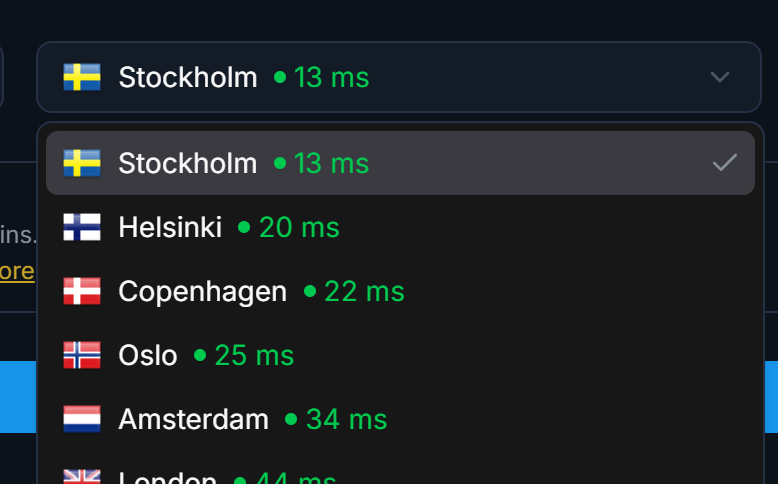
- Save and Reboot the server. Now try playing again!
This usually fixes most of the cases, but if not, please look at the other fixes in this guide.
Disable Buffering
In CS2, there is an option to enable buffering to smooth over packet loss / jitter. Although this does help if you are playing on a weak internet, it usually delays actions and causes input lag when you don't need it.
- Start CS2.
- Open the Settings tab.
- Click the Game section.
-
Set Enable Buffering to smooth over packetloss / jitter to None.
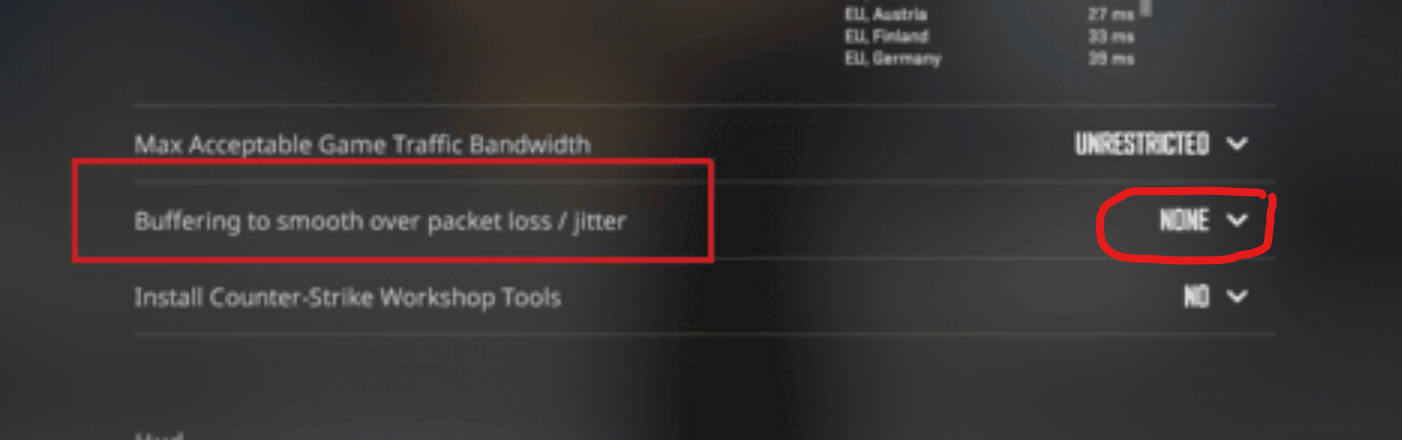
If you already have it set to None, and still experience lags. There are two ways to go.
Optimize Routing / Optimize Individual Internet
-
Contact the SCL support.
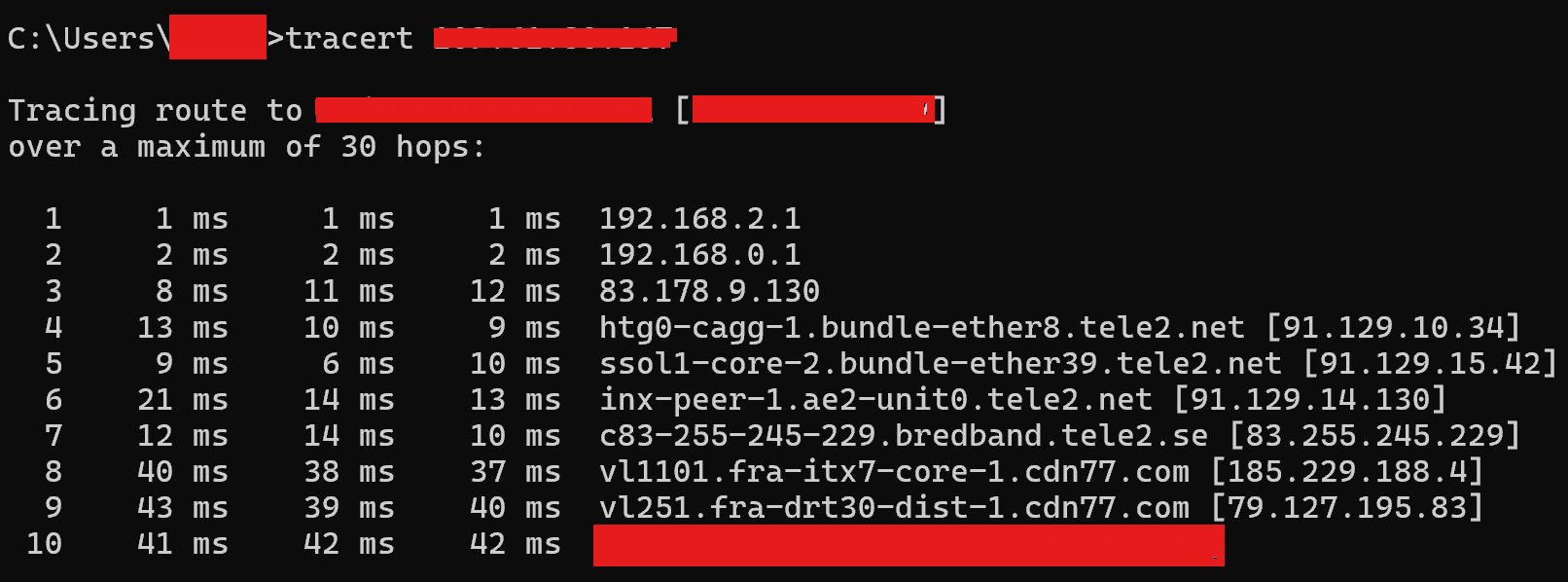
We can contact our datacenter and ask them to optimize the route between your ISP and our datacenter, this usually goes pretty fast and is very efficient. All we need from you is a traceroute from you to one of our servers. This is how you perform a traceroute.
- Open CMD in Windows.
- Copy the server IP where you experience the lags.
-
Type tracert <ip>, for example tracert 123.123.123.123 and hit Enter.
-
Copy the traceroute data and send it to us, either in our support tool or in our Discord.
- Individual Optimization.
There are many ways to improve your own internet connection to fix jitter, input lags, and more.
- Use a wired connection (Ethernet) instead of WI-FI.
-
If you must use WI-FI, use 5GHZ or 6GHZ if available.
-
-
Fix Bufferbloat by enabling SQM / QoS on your router. (FQ-CoDel or CAKE if available).
- Restart your router — Not a joke, this can:
- Change your ISP’s upstream path.
-
Move you off a congested route
- Switch to Google or Cloudflare DNS: https://developers.cloudflare.com/1.1.1.1/setup/windows/
Most importantly, remember to disable any use of VPN's while playing CS2. Most VPN's are known to cause input lags.